


Set up your VuePod
in about five minutes.
Your VuePod mounts on the outside of the tank glass and streams a live 2K view to your phone through the free TSCloud app. Power on, connect the app, then stick it down — that’s it.
- 2K HD live view
- Two-way audio
- 2.4 & 5 GHz Wi-Fi
- microSD recording
- Indoor · mounts on glass
- 365-day warranty
Stuck? Email tech@vuepod.net with your order number — we reply within 24 hours.
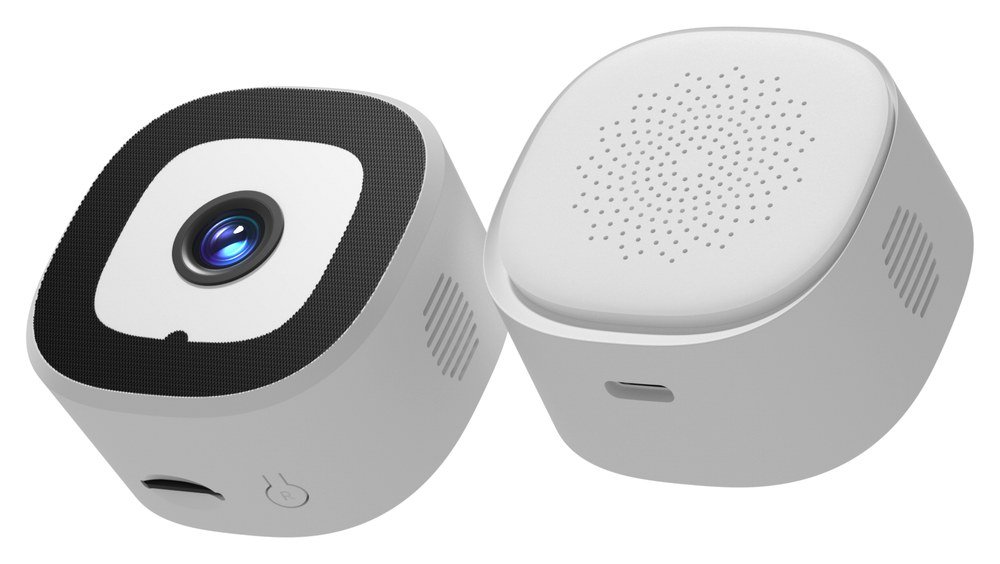
What’s in the box
Open the package and check the contents against this list.
Missing or damaged item? Email tech@vuepod.net with your order number.
Install in five steps
Power on, connect the app, and find the best spot first — then clean the glass and mount. That way you won’t have to peel and re-stick the pad.
-
1
Connect power
Plug the camera into the included DC 5V/1A adapter with the USB cable. Route the cable away from the water so it can’t drip or sit in moisture.
-
2
Connect the app
Install TSCloud (iOS or Android), create an account, then pair over Bluetooth and join your 2.4 or 5 GHz Wi-Fi. Full walkthrough below.
-
3
Find the best spot
Hold the camera against the side of the tank at eye level for the best view. Make sure Wi-Fi is strong there, and avoid spots where sunlight hits the lens.
-
4
Clean the glass
Wipe the outer glass clean and dry with a lint-free cloth and remove any algae or residue — the adhesive pad grips best on clean glass.
-
5
Mount the camera
Peel the backing off the pad and press the camera firmly against the outer glass for 10–15 seconds.
Get the TSCloud app
Scan to download TSCloud (free, iOS & Android), then follow the steps below to connect your VuePod.

Connect with the app
Real screens from the TSCloud app, step by step — from sign-in to the live view of your tank.
Download & sign in
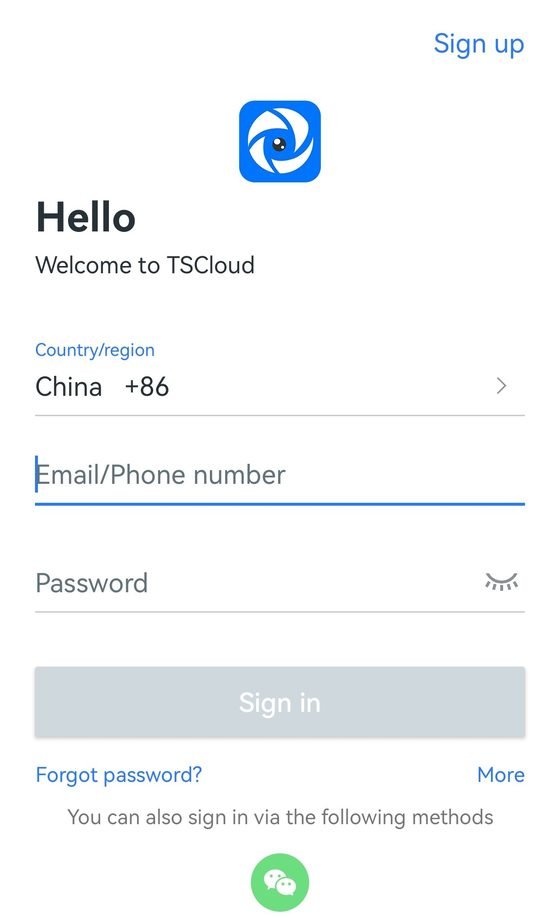
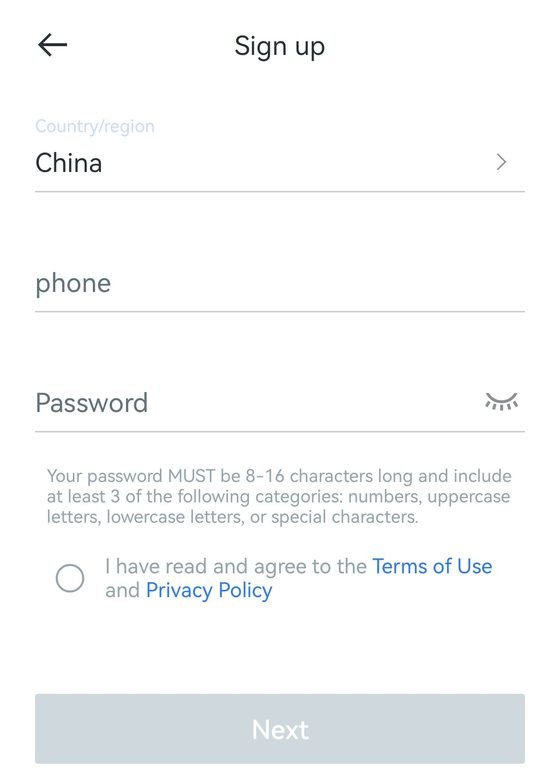
Search TSCloud on the App Store or Google Play and install it. Open the app, tap Sign up, choose your country/region, register with email or phone, set a password (8–16 characters), accept the terms, and continue.
Add your camera over Bluetooth
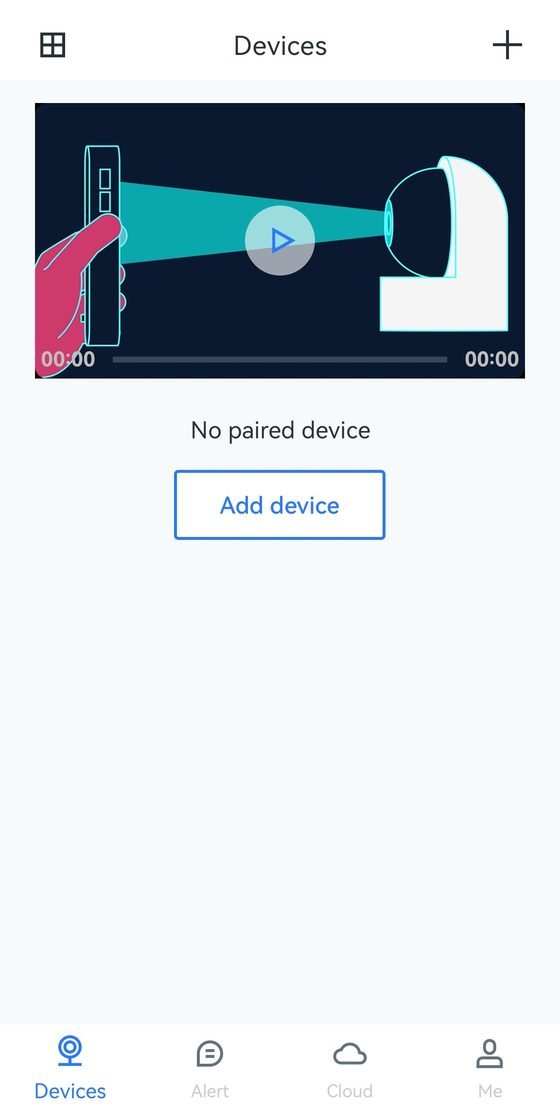
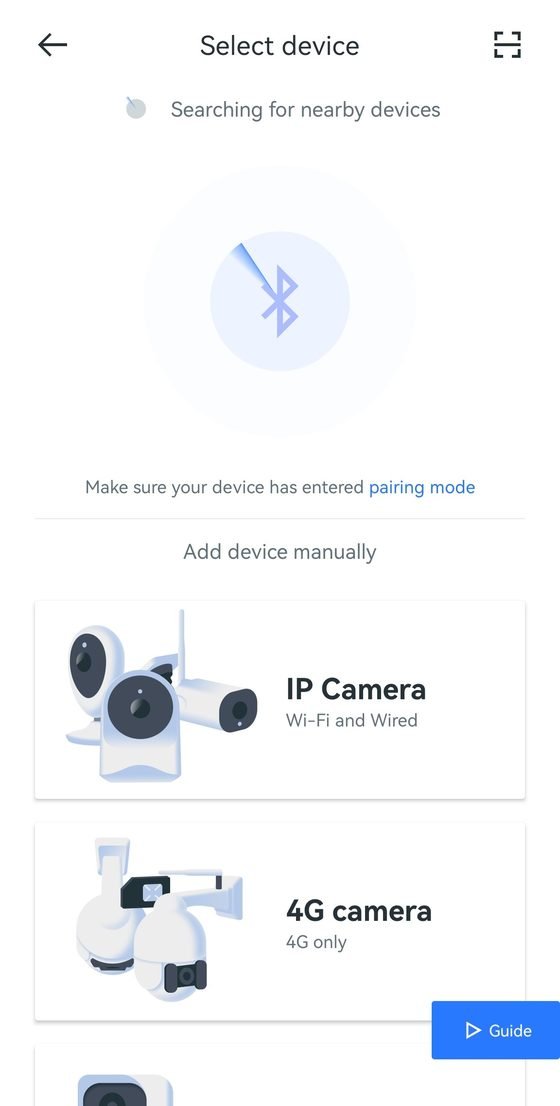
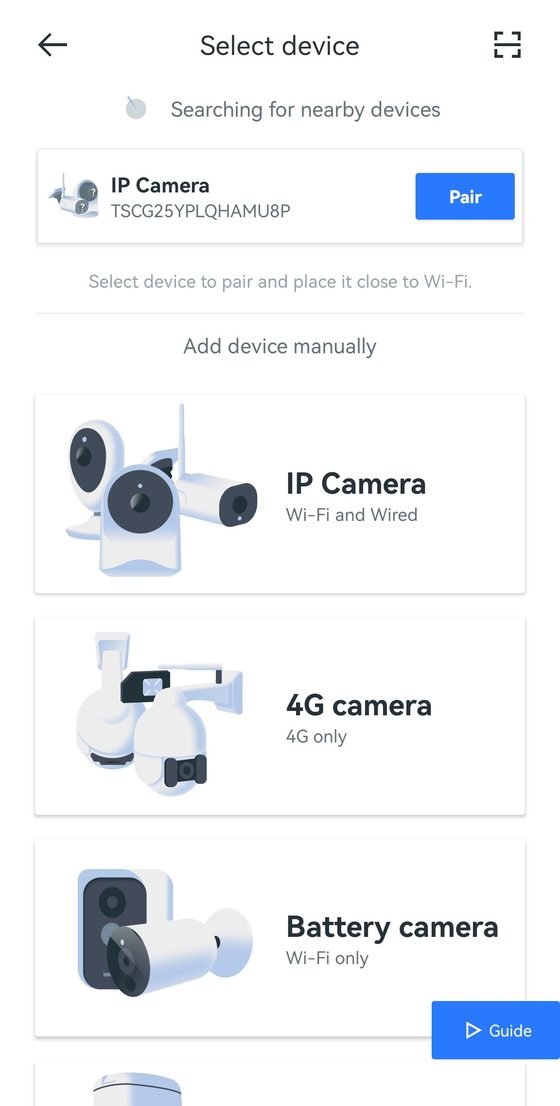
Turn on Bluetooth and Location, and keep your phone on your home Wi-Fi. Hold the camera’s Reset button (on the bottom) for 3–5 seconds until the blue light flashes. In TSCloud, open Devices → + → IP Camera (Wi-Fi and Wired), then tap Pair.
Choose Wi-Fi & connect
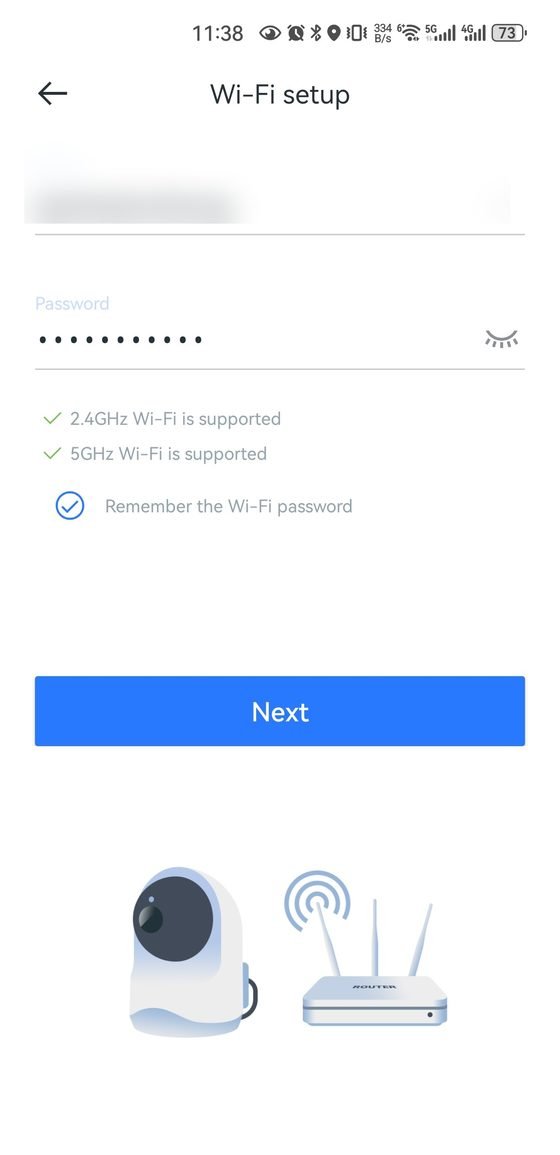
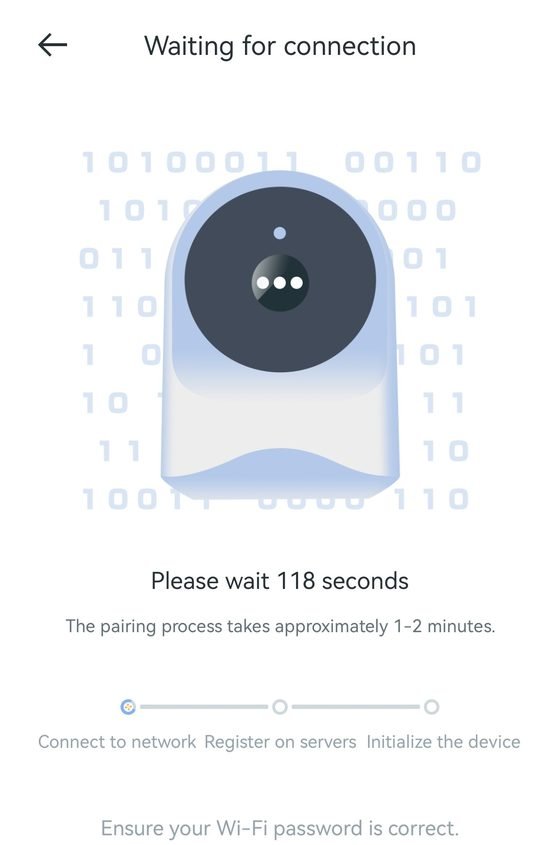
Select your Wi-Fi network — both 2.4 GHz and 5 GHz are supported — enter the password and tap Next. The app connects, registers, and initializes the camera in about 1–2 minutes. Keep your phone near the router.
Name it & check signal
When it says Pairing successful, give the camera a name (e.g. “My Aquarium”). The app checks your Wi-Fi signal — when it reads Good, tap OK.
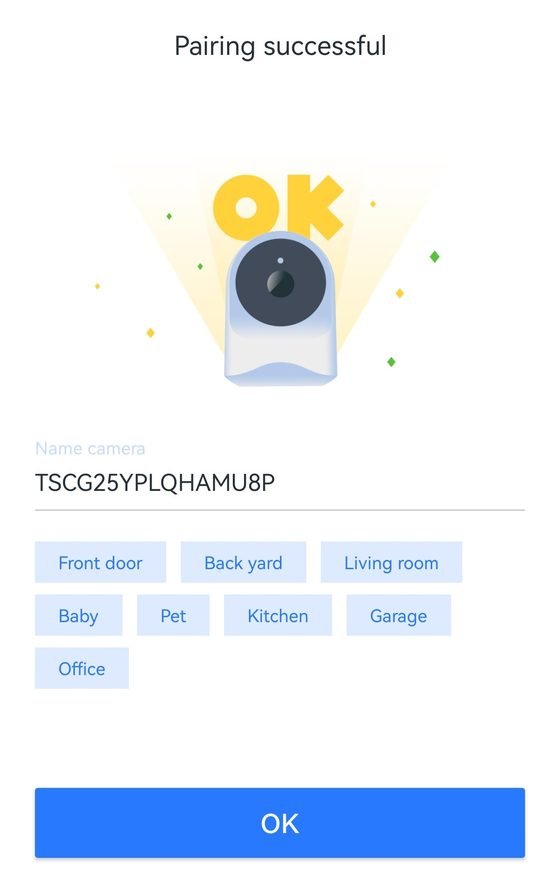
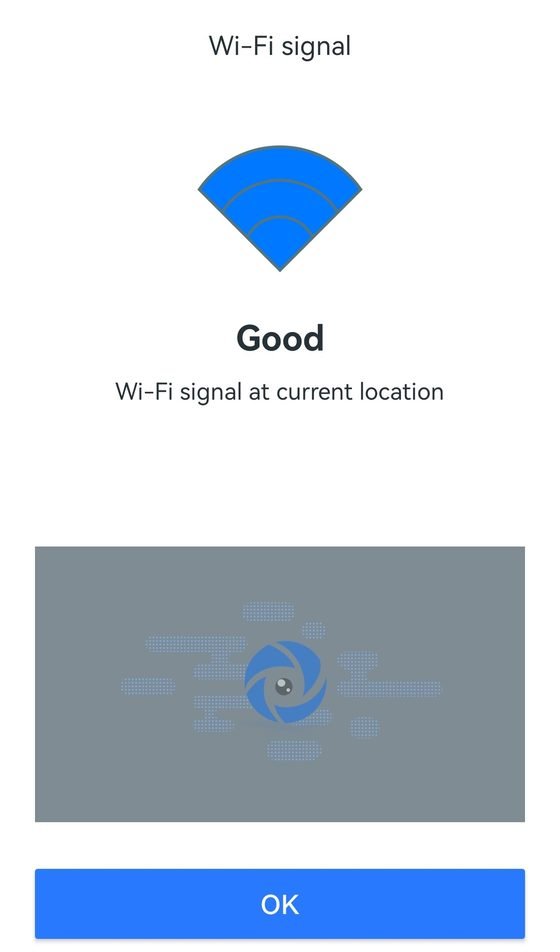
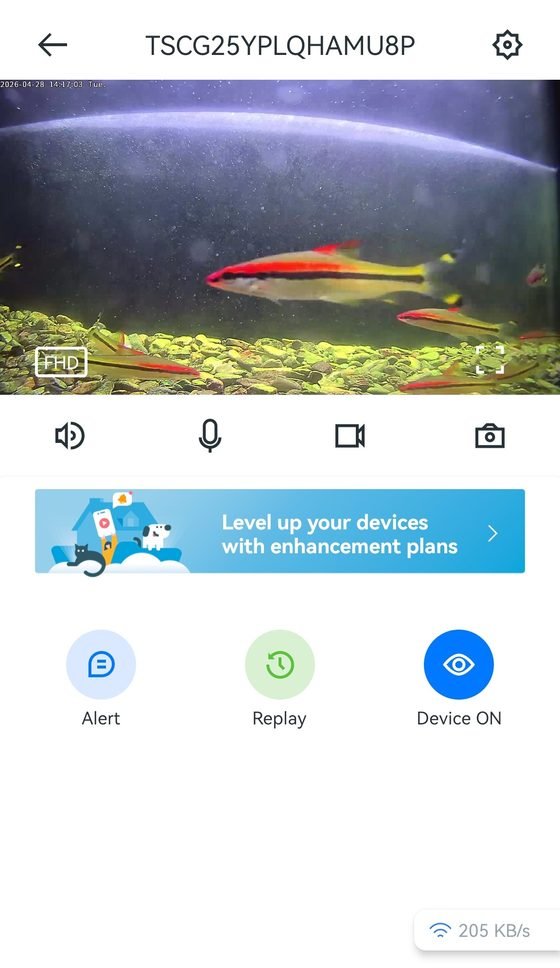
Your tank, live in 2K.
Tap your camera on the Devices page to open the live view — crisp 2K video with an on-screen timestamp and one-tap snapshot & record.
Get the clearest picture
Mount it flush
Press the camera flat against the glass with no air bubbles behind it.
Tame the glare
Keep the tank’s interior lights from shining straight onto the lens or glass.
Avoid direct sun
Don’t let sunlight fall on the lens — it washes out the image.
Keep it dry & cool
Route the cable away from heaters, filter outlets, and splashing. Never let it hang into the water.
What you can do in the app
Once your VuePod is set up, here’s what you can do from the TSCloud app, day to day.
2K HD live video
A sharp, real-time view of your tank with an on-screen timestamp.
Two-way audio
Listen in on your tank, or talk back through the built-in speaker.
Wide-angle view
See more of your tank in a single frame, edge to edge.
Snapshot & record
Grab a photo or clip of a moment worth sharing.
Local & cloud storage
Record 24/7 to a microSD card (up to 128 GB, Class 10/U1), no subscription needed. Optional cloud storage is there if you want it.
Share & alerts
Share the camera with family, and turn on motion detection if you want alerts.
Aquarium tip: a tank is always moving, so motion detection can send a lot of alerts. Turn motion detection off, or set a small detection zone so only one area triggers notifications.
Questions & fixes
The camera won’t connect to Wi-Fi.
Check that the camera is powered on and in pairing mode (blue light flashing); Bluetooth and Location are on; the Wi-Fi password is correct; and you’re within about 1.5 m of the router.
I’m getting too many alert notifications.
A moving tank constantly triggers motion detection. Turn motion detection off, or set a detection zone so only fish or pets in that area trigger alerts.
How do I reset the camera?
Press and hold the Reset button (on the bottom) for about 5 seconds until the status light changes. The camera returns to factory settings, and you’ll set up Wi-Fi again.
What size microSD card can I use?
Up to 128 GB. A Class 10 / U1 (or faster) card is recommended for smooth recording.
How do I share the camera with family?
In the camera’s settings in TSCloud, use the Share feature and enter your family member’s registered TSCloud account.
There’s glare in the image.
Make sure the camera sits flush against the glass with no air bubbles, and keep the aquarium’s interior lights from shining directly onto the lens or glass.
The camera goes offline or feels unstable.
Check for interference near your router, look at the signal strength in the app, try switching between 2.4 GHz and 5 GHz, and make sure the firmware is up to date.
Need a hand?
Email tech@vuepod.net with your order number and a short description — we aim to respond within 24 hours. Your VuePod is backed by a 365-day limited warranty.